Hello Niotron Community 
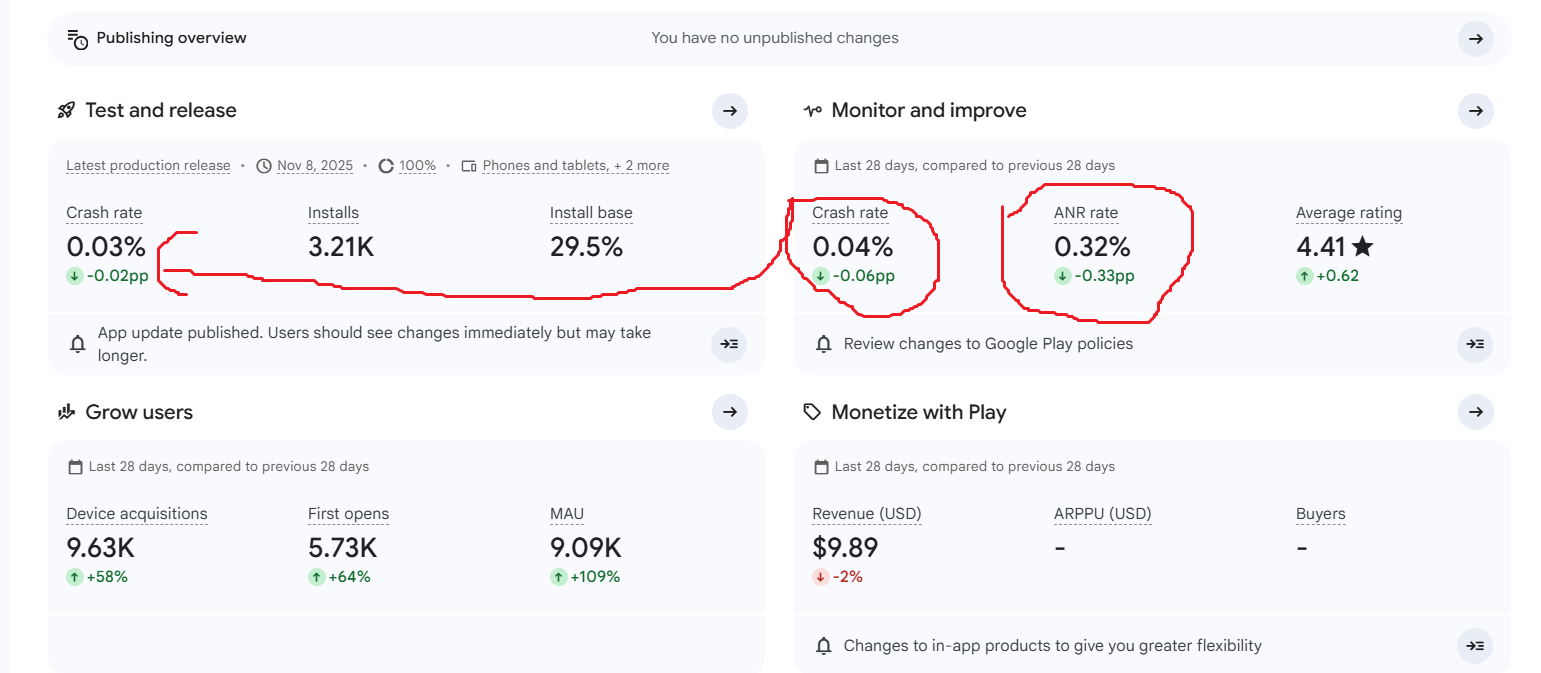
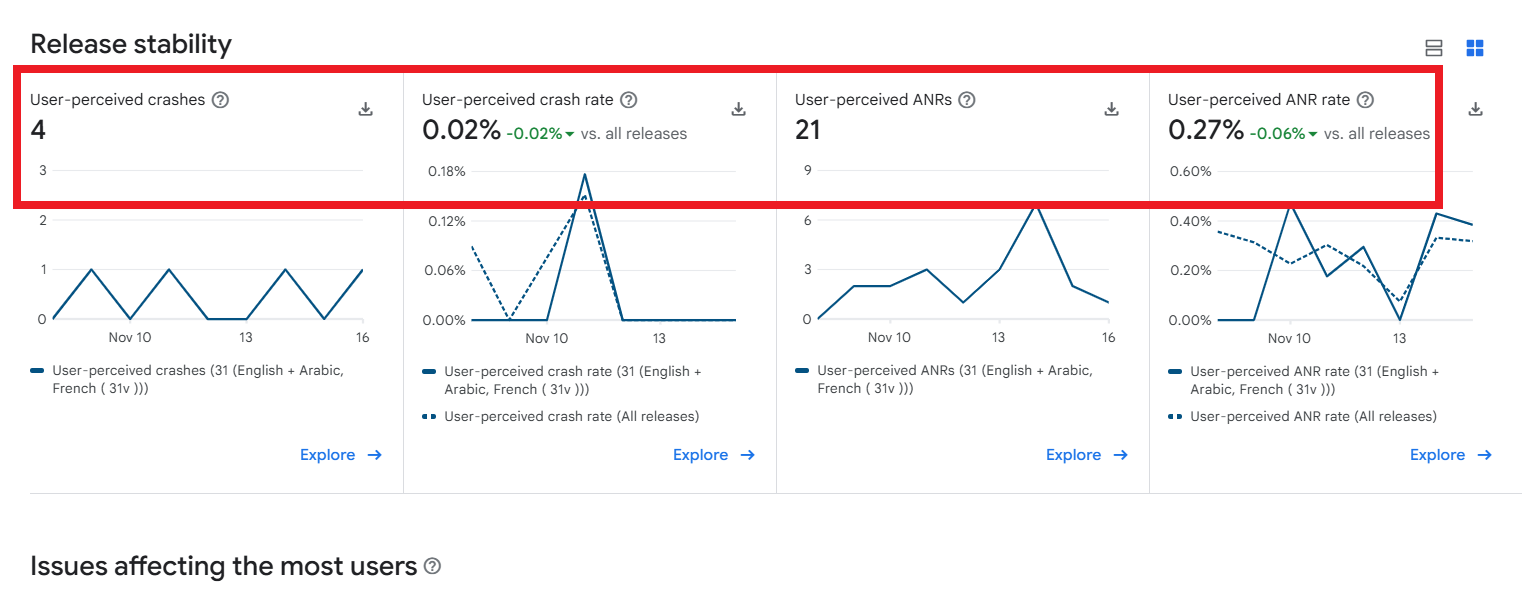
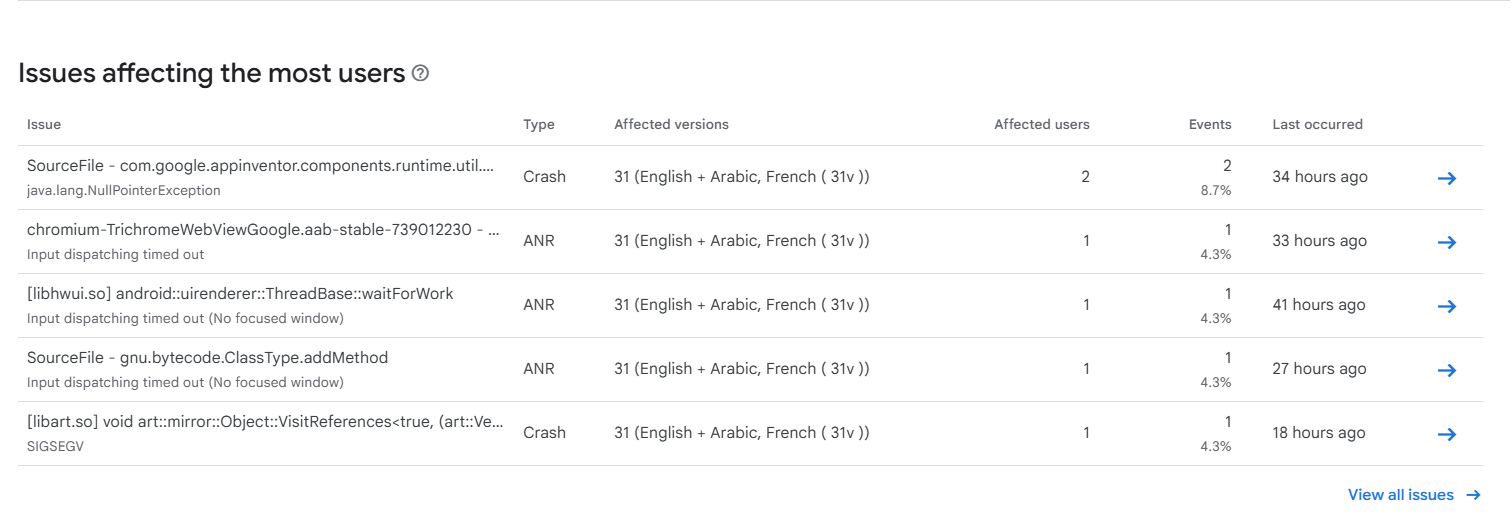
I need expert help fixing two issues that started appearing in my Play Store production version (v31) of my app, which currently has 14.3K+ downloads. Everything was working fine before, but now I’m getting Crashes and ANRs (App Not Responding) in the Play Console related to file handling and UI freeze.
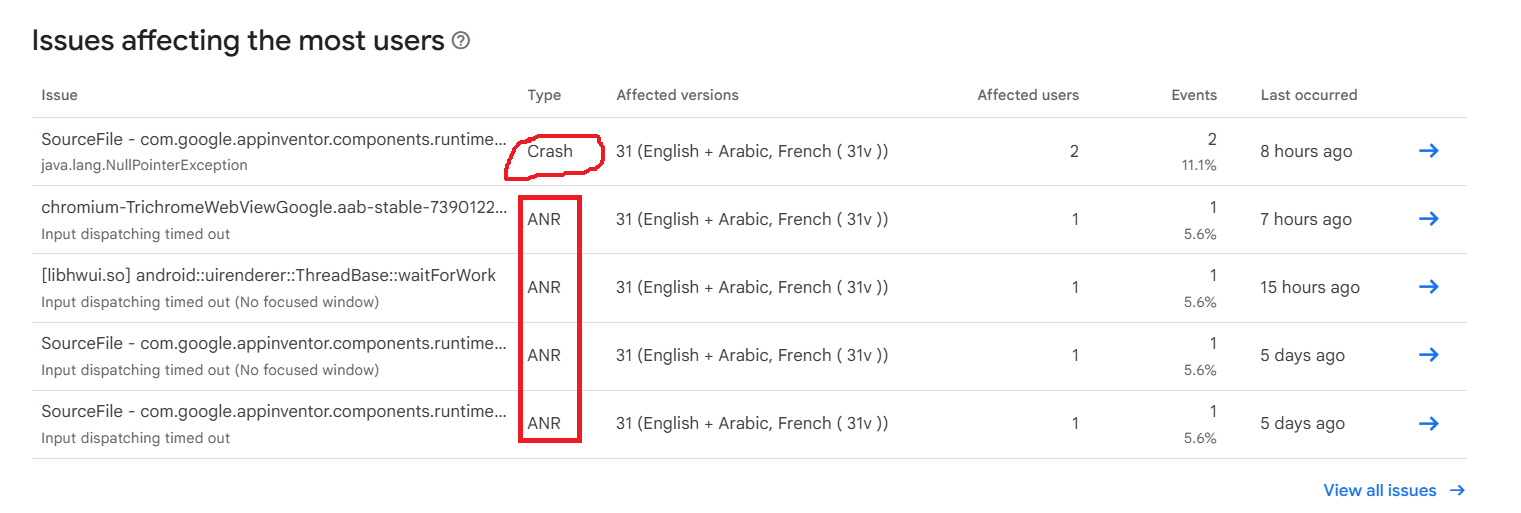
 Crash Details
Error:
SourceFile - com.google.appinventor.components.runtime.util.QUtil.getExternalStoragePath
java.lang.NullPointerException
Status: In production
Affects: v31
Last seen: 2 hours ago
Description:
This crash appears to be triggered when the app tries to copy or access index.html using TaifunFile. It seems the method getExternalStoragePath is returning null, possibly due to storage permission changes in Android 11+ (Scoped Storage).
 ANR (App Not Responding)
Error:
Native method - J.N.MaRRNbDu
Input dispatching timed out (No focused window)
Status: In production
Affects: v31
Last seen: 3 hours ago
Description:
This ANR seems to occur during app startup — maybe while copying or loading the HTML file — which freezes the UI for too long. Possibly a long task (like file copy) running on the main UI thread.
 My Current Blocks
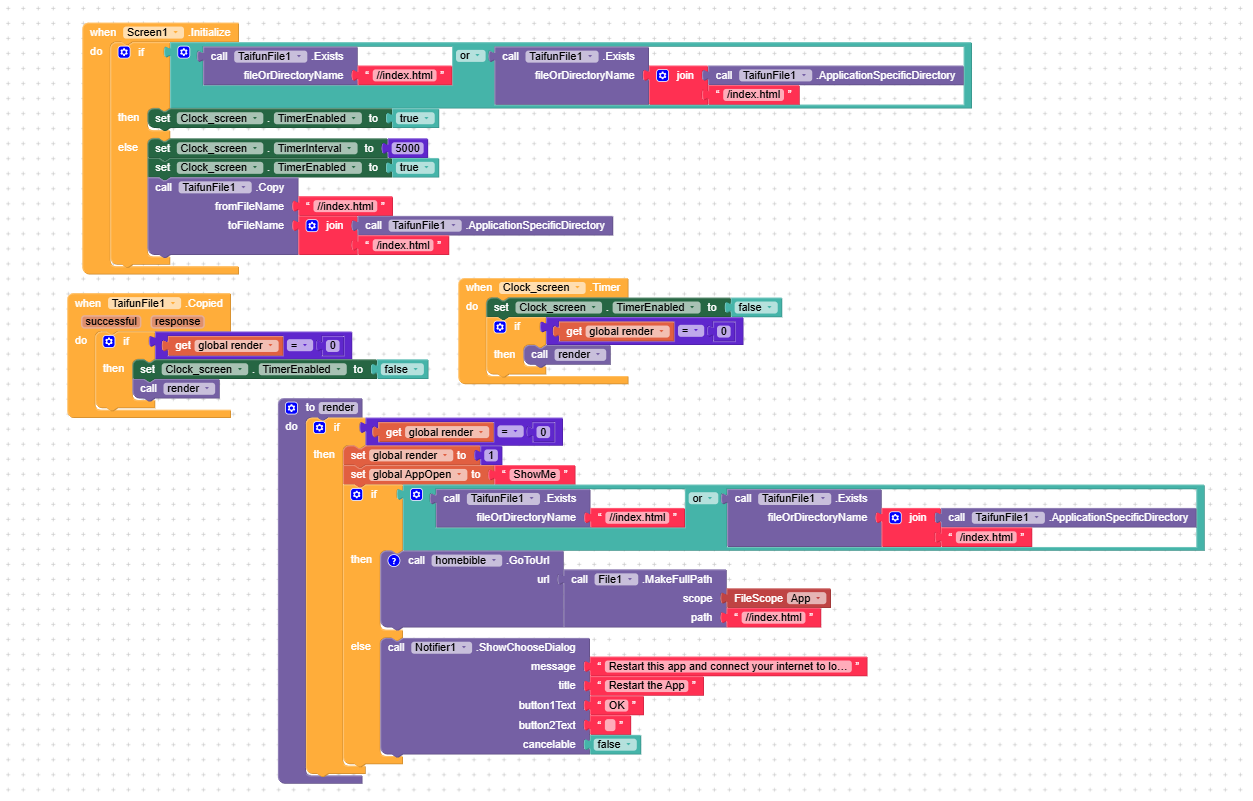
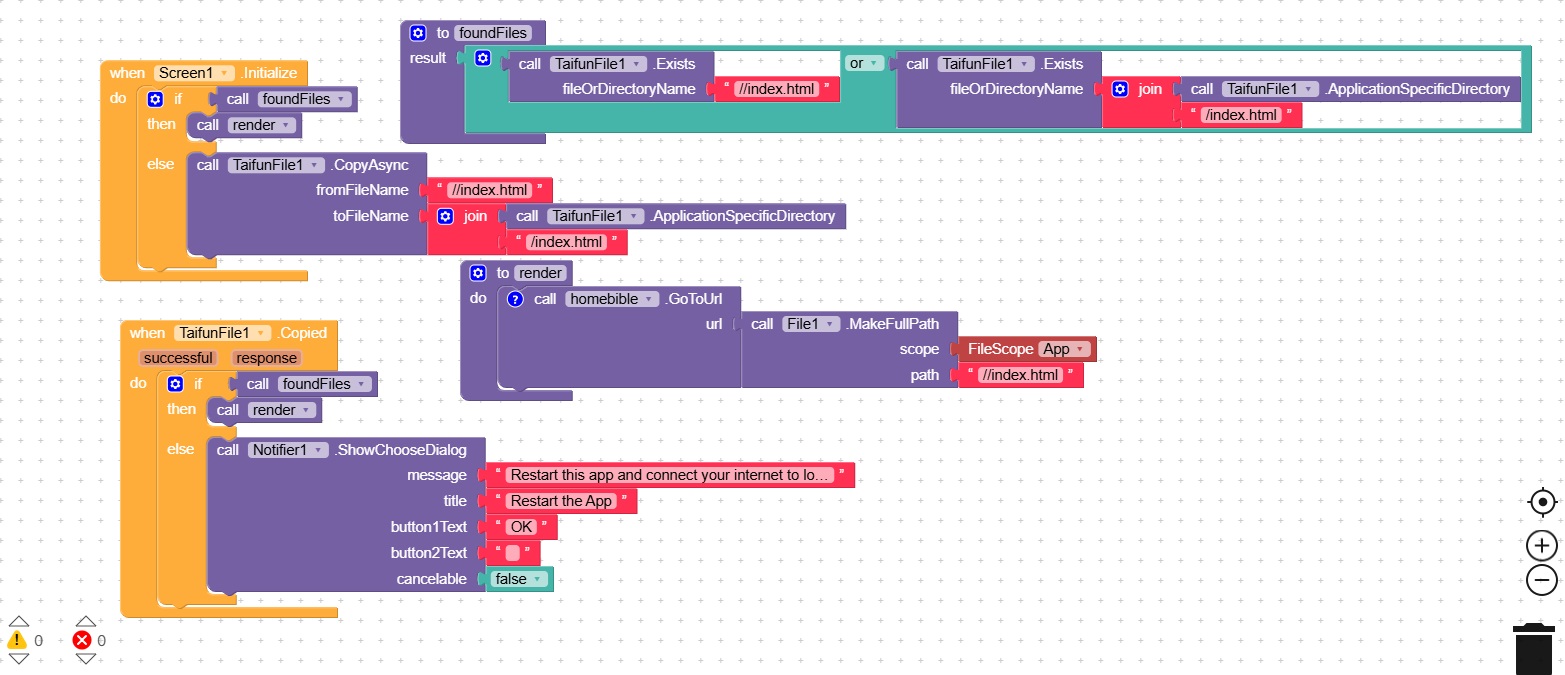
Here’s how I currently manage the file and app initialization:
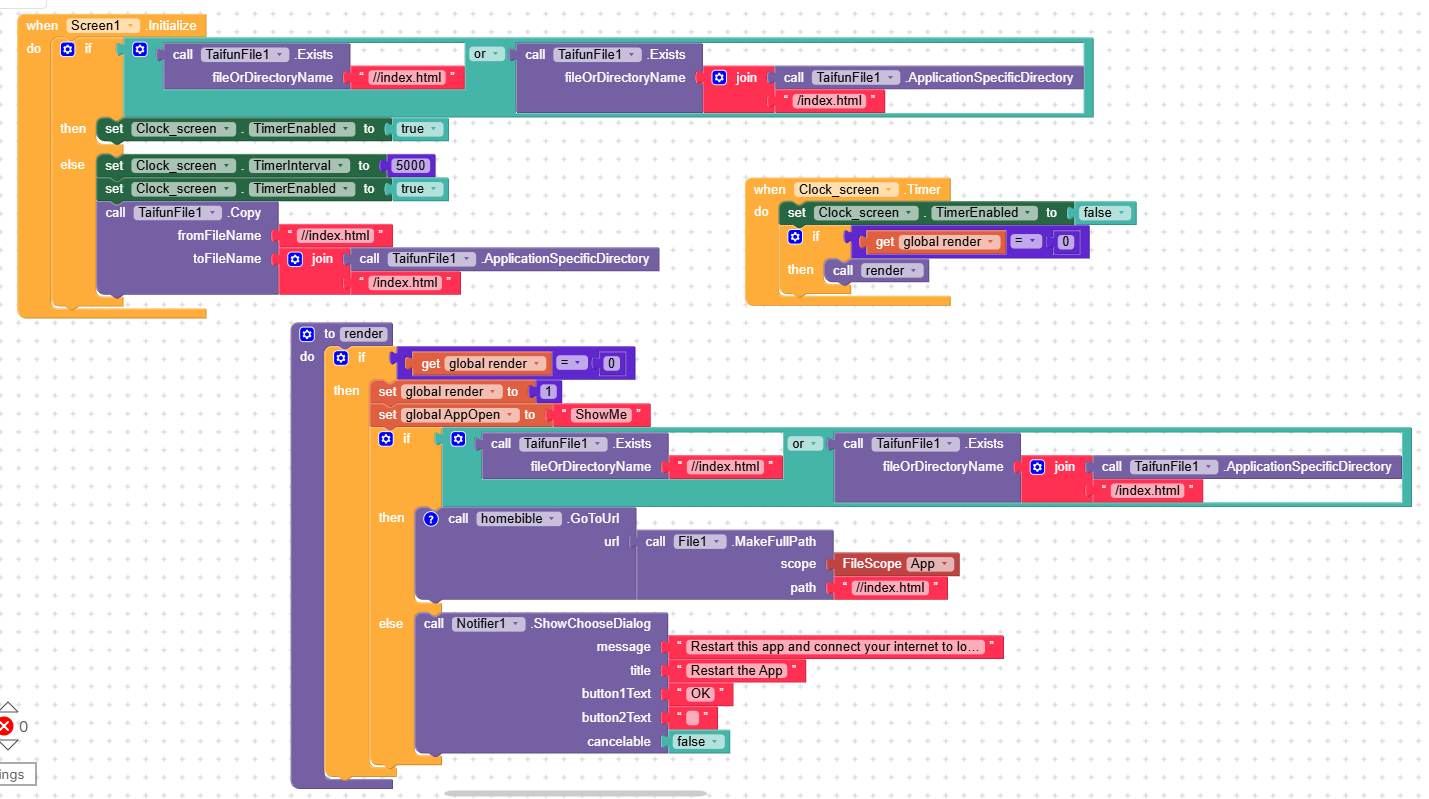
In short:
-
I check if
index.htmlexists in internal or app-specific storage. -
If not, I copy it using
TaifunFile1.Copyfrom the assets. -
I then use a clock to call the
renderprocedure and load it into a web viewer.
 What I Need Help With
-
How to correctly handle file copy/access in Android 11+ without causing
QUtil.getExternalStoragePathcrashes. -
Whether I should change
ApplicationSpecificDirectoryusage or switch toFileScope = App. -
How to prevent the ANR (No focused window) — maybe by using a clock delay or async process instead of direct heavy file operations in
Screen1.Initialize. -
Any improved example or best-practice blocks for safely loading local HTML files.
 What I’ve Tried
-
Verified storage permissions (
READ_EXTERNAL_STORAGE,WRITE_EXTERNAL_STORAGE). -
Checked both
FileandTaifunFilecomponents. -
Tried adding a delay before file copy (with Clock), but still see occasional ANRs.
 Goal
Goal
I want to completely eliminate both the storage crash and UI freeze so that my users get a stable experience on all devices.
Any guidance, examples, or best practices from experienced Niotron developers would be a huge help! 
**From my searching I found someone used this **
Creating Games in Niotron’s WebView: A GuideThis guide provides step-by-step instructions on how to create a simple “Snake Game” using HTML, CSS, and JavaScript, and then run it within the WebView component of Niotron platform. The process involves creating a basic web game and embedding it into an App Inventor project.
Step 1: Preparing Your Game Files
You will start by creating the game’s files:
index.html,script.js, andstyle.css. Below is a brief overview of each file’s purpose:
- index.html: This file contains the game’s HTML structure, linking the CSS for styling and JavaScript for functionality. It includes a
<canvas>element where the game will be rendered and audio elements for game sounds.- script.js: The JavaScript file where the game’s logic is defined. It includes functions for drawing the game elements on the canvas, handling user input, and managing game states like starting, ending, and scoring.
- style.css: The stylesheet that defines the appearance of the game, including the canvas sizing to ensure it covers the entire viewport.
Step 2: Creating the HTML File (
index.html)<!DOCTYPE html> <html lang="en"> <head> <meta charset="UTF-8"> <meta name="viewport" content="width=device-width, initial-scale=1.0, maximum-scale=1.0, user-scalable=no"> <title>Snake Game</title> <link rel="stylesheet" href="style.css"> </head> <body> <audio id="bgMusic" loop> <source src="snake-hissing-6092.mp3" type="audio/mp3"> Your browser does not support HTML audio. </audio> <audio id="gameOverSound"> <source src="snake-hissing-6092.mp3" type="audio/mp3"> Your browser does not support HTML audio. </audio> <canvas id="gameCanvas"></canvas> <script src="script.js"></script> <script> function resizeGame() { const canvas = document.getElementById('gameCanvas'); canvas.width = window.innerWidth; canvas.height = window.innerHeight; if (typeof drawGame === 'function') { drawGame(); } } window.addEventListener('load', resizeGame); window.addEventListener('resize', resizeGame); </script> </body> </html>Step 3: Writing the JavaScript Logic (
script.js)This file includes the logic for the snake’s movement, game boundaries, collision detection, and game over conditions. Due to space constraints, let’s summarize what should be included:
- Variables for game state (speed, snake position, apple position, score, etc.).
- Functions to draw the snake, apple, score, and game boundaries on the canvas.
- Event listeners for touch and keyboard inputs to control the snake.
- Logic for collision detection, game over conditions, and restarting the game.
Step 4: Styling the Game (
style.css)/* Standard reset to remove margins and paddings */ html, body { margin: 0; padding: 0; overflow: hidden; /* Prevents page scrolling */ height: 100%; /* Makes body take up the full screen height */ width: 100%; /* Makes body take up the full screen width */ } /* Styling for the canvas to ensure it covers the full viewport */ canvas { display: block; /* Removes extra spacing below the canvas */ background-color: #000; position: absolute; /* Allows more controlled positioning */ top: 0; left: 0; } body { display: flex; justify-content: center; align-items: center; background-color: #f0f0f0; }Step 5: Embedding the Game in App Inventor
- Create a new App Inventor project.
- Add a WebView component to your app’s interface.
- Upload the game files (
index.html,script.js,style.css, and any assets like audio files) to the project’s assets.- Set the WebView’s Home URL to the
index.htmlfile.You can do this by setting the HomeUrl property of the WebView component to the file path ofindex.htmlwithin the project assets.- Test the game on your device or emulator. Ensure the App Inventor app has internet permissions if needed.
Conclusion
This guide provides a basic overview of creating a web-based game and embedding it within an App Inventor project using the WebView component. The example focused on a simple “Snake Game,” but the principles apply to any web game designed with HTML, CSS, and JavaScript. Experiment with the game’s design and functionality to create unique experiences for your users.
See all files on GitHub GitHub - iagolirapasssos/SnakeGameWebView: Creating Games in App Inventor’s WebView: A Guide
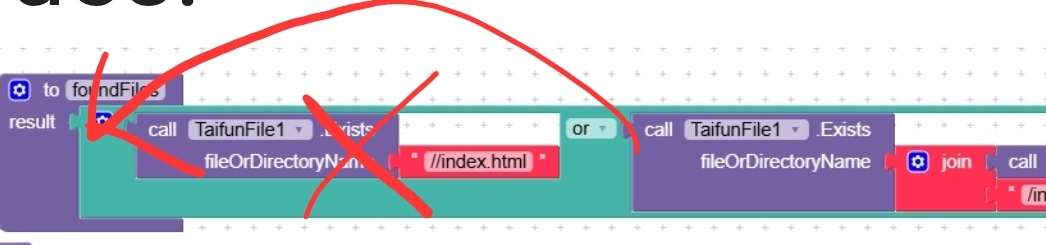
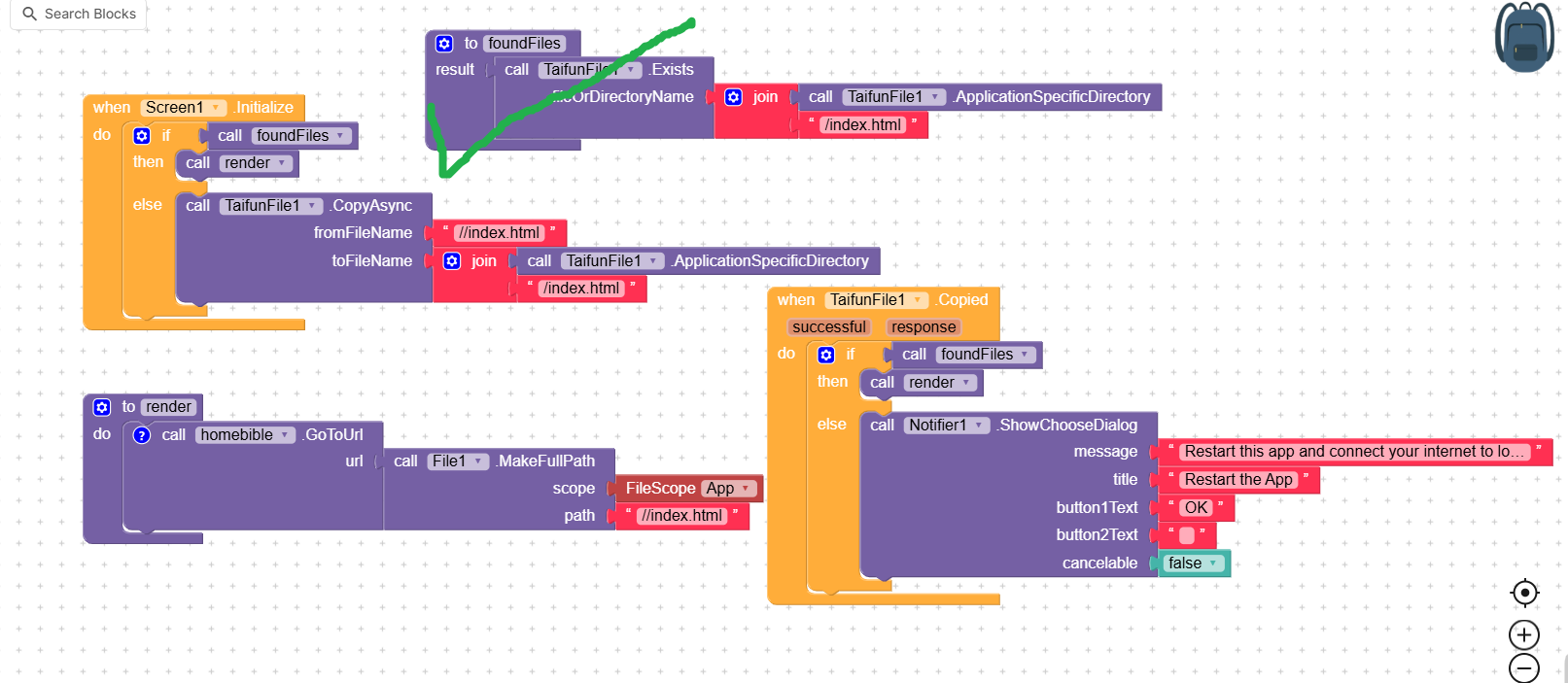
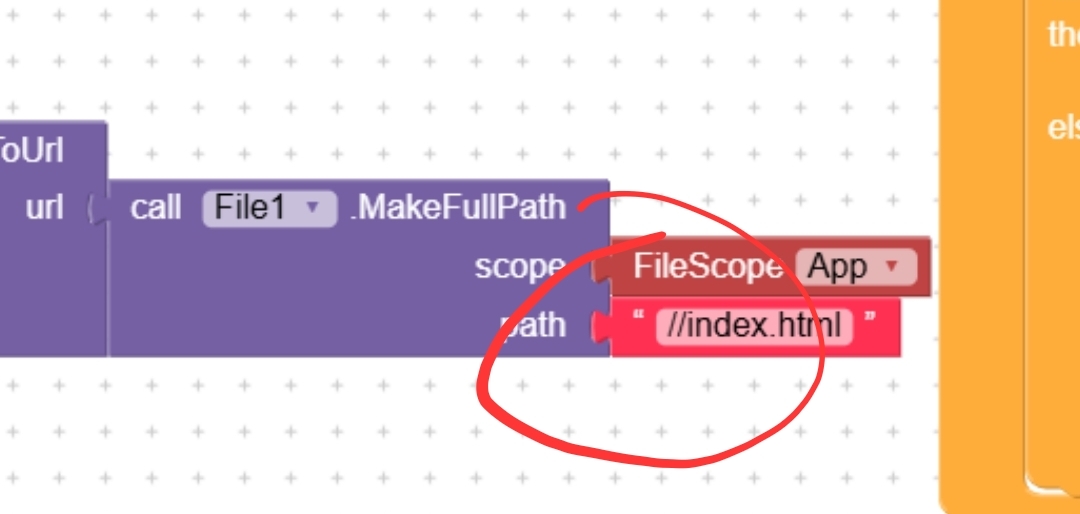
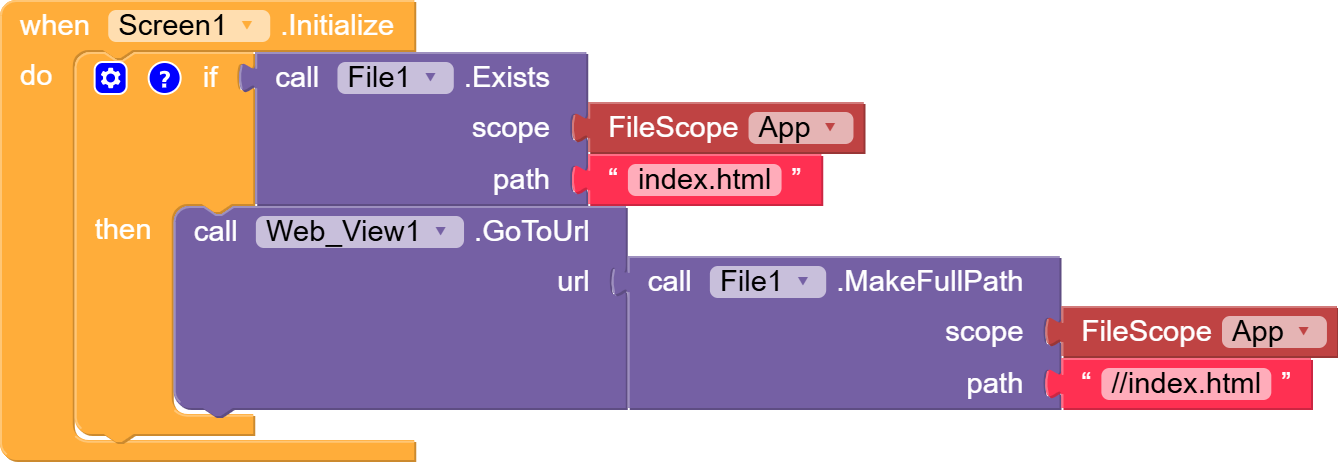
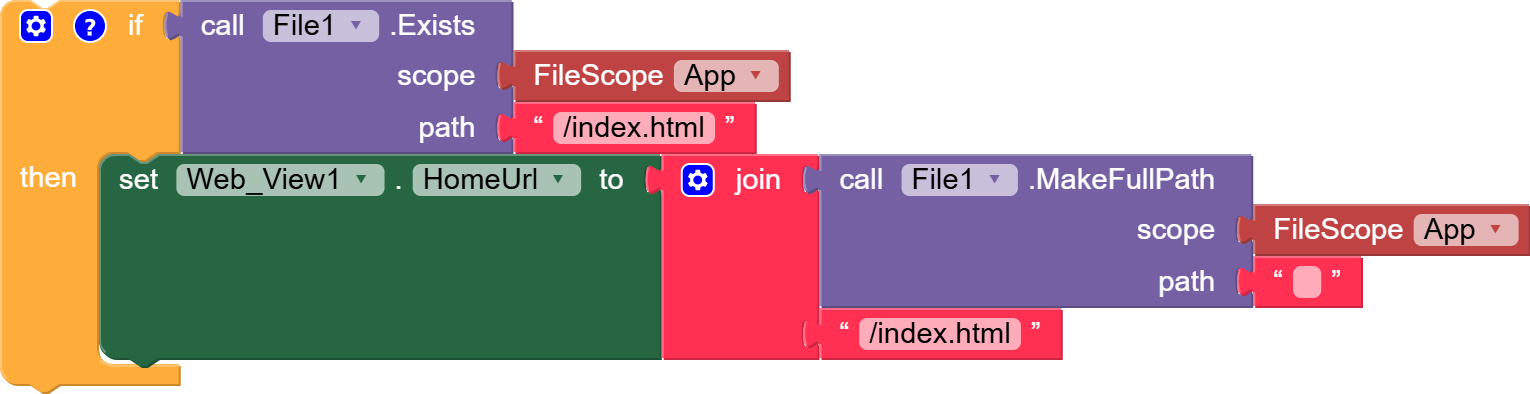
especially on this block
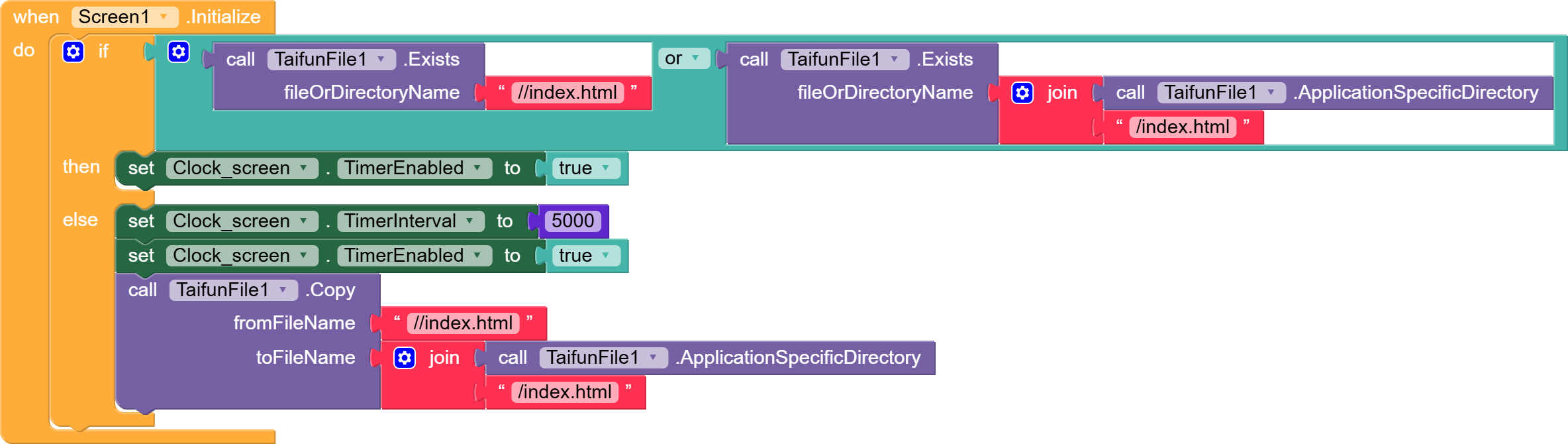
but from my end I only use this
or I can say that I am using this first one
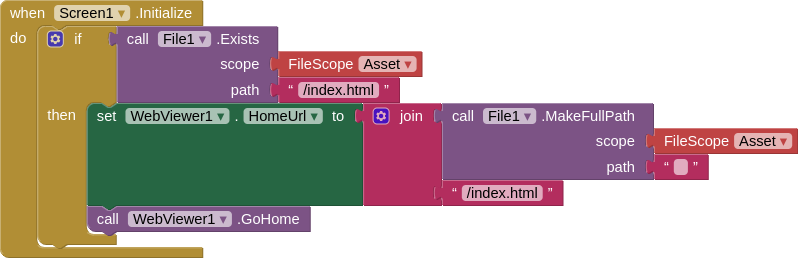
and not tried this
so the question on those two blocks which is the best to use and why?
Thanks in advance if someone can come up with the real best solution to fix and eliminate the Crash & ANR error I get in my Play Store console